What would you like to know? :
-
How to select a survey - Describes how to select a survey from the list, after you have logged in to Survey Manager.
-
How to complete a questionnaire - Describes how to answer questions and the different answer presention formats.
-
How to save answers - Describes how Survey Manager saves your answers to each question in a questionnaire and explains the automatic time out built into the program.
After you have logged in to Survey Manager, a table with a list of all the surveys you have been nominated to participate in will be displayed.
You may have been nominated to participate in more than one survey or you may be required to answer a 360 degree questionnaire several times, each time answering the questionnaire about a different person.For example, you may be required to answer a 360 degree questionnaire twice - once about your direct supervisor and the other about one of your peers.
Each survey will be displayed with a number, the name of the survey, the answer status and the due date for the survey (if any).
A survey will have either of the following three answer status:
-
No Answer (not yet begun answering) - this status is displayed if you have not opened the survey in the past
-
Partial (partially answered) - this status is displayed if you had previously opened the survey and closed it before you reached the end
-
Answered (fully answered) - this status is displayed if you had previously reached the end of the questionnaire and selected the Close option on the End survey page.
To open a survey, select the survey you want to answer from the list by clicking once on the name of the survey.
 If you had previously reached the end of a survey and you selected
the Submit option on the End survey page, this survey will not be displayed
on this list.You will not be able to change your answers to the
survey once you submit it.
If you had previously reached the end of a survey and you selected
the Submit option on the End survey page, this survey will not be displayed
on this list.You will not be able to change your answers to the
survey once you submit it.
How to complete a questionnaire
Typically, a questionnaire contains questions and labels, eg. headings, instructions, rating scale information, etc. What would you like help on?
Labels contain only text and are used as a note or memo containing information about the survey. You do not need to answer a label. They can be narrative (where they appear on the page by itself) or they can be a header (where they appear above a question). Typically, a questionnaire will begin with a label providing information about the survey which you should read before proceeding.
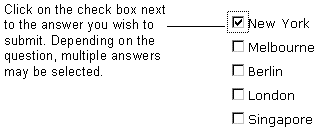
Questions can be displayed one at a time on the page or in a block under a particular question category heading, ie. Communication, Initiative etc. Generally a question or block of questions will appear with a label above it, which you should read before answering questions. Please note that if a question's text appears in blue, it means that it is compulsory and requires an answer. If you do not provide an answer, you will be unable to move to the next page. The answers to questions may be presented in several formats. How to make an answer selection with each format is described below.
Click on a radio button to select that answer item as your answer to the question. You can only select one radio button. When you select another radio button, your previous selection will be overridden.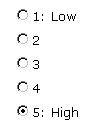
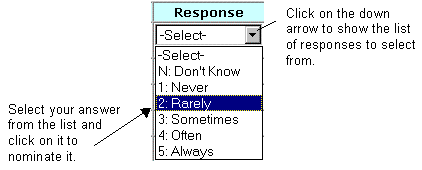
Another way to move through drop down list questions is to use your tab key. For example if you have come to a new page, two tab moves will bring you to the first answer box. If you know the selection of answers, you can type either the number or letter character that appears first to enter your answer, then tab to the next answer box.
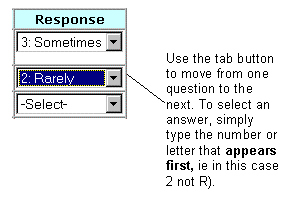
You can continue to move through in this manner until you have answered all the questions on that page. Tab to the NEXT PAGE button and then press your spacebar to move to the next page. Note you can not move backwards using this method.
These fields enable you to enter your own answer to the question. Type in your answer in the field provided. In some cases, the type of character (numeric and/or alphanumeric) and the number of characters you are permitted to enter in a keyboard entry field maybe limited by the Questionnaire Constructor.
To move through the questionnaire, you need to select or enter your answer to the question(s) and click on the NEXT PAGE button at the bottom right of the page to move to the next question(s) in the questionnaire. To go to a previous page or question click on the PREVIOUS PAGE button.
NOTE: Whilst in the questionnaire, please avoid using the browser's back and forward buttons other than when accessing the help screens.
Proceed in the same way through all the questions until you complete the questionnaire.
When you have reached the last question in the questionnaire, answer it and then click on the NEXT PAGE button to move to the End Survey page where you can either select to review your answers now, close the questionnaire and review your answers at a later time, or submit the questionnaire. After you submit, you will not be able to review or change your answers to the questionnaire.
In some cases, a narrative label may be the last part of a questionnaire
instead of a question. For example, a narrative label may be displayed
thanking you for your participation in the survey. If so, read the
label and then click on the NEXT PAGE button to move to the End Survey
page.
Each time you click on the NEXT PAGE button after you provide an answer to a question or block of questions, your answers are saved in the database. It is not necessary for you to save separately.
Once you have selected a survey to answer, you cannot close the survey without completing it, unless you close your browser which is not recommended unless you have saved answers on the current page by clicking the NEXT PAGE button.
If it is necessary to do this, (ie because you need to leave your desk), then ensure you have finished answering that page and click the NEXT PAGE button and then the answers you have provided so far will be saved and will appear next time you login to Survey Manager and open the survey.
Two important reasons why your answers may not be saved;
- If you are in the middle of answering questions on a particular page and problems are experienced with the internet service or your computer or you close down your browser, the answers on the current page will not be saved. Remember answers are saved when you proceed to a new page, after you have clicked on the NEXT PAGE button.
- The questionnaire has an automatic time out incorporated into the program. If you leave the questionnaire open for more than 30 minutes, the questionnaire will automatically shut down and any answers that you were working on will not be saved.
Refer to our Trouble Shooting guidelines if your are experiencing technical difficulties in answering the survey. Alternatively, contact the people identified in your invitation email.